One short request to build your entire monthly variance pack. The calculations, the commentary, the layout, and the formatting, all following the process you have already defined.
That is the attraction of Claude skills in Excel. Rather than typing the same lengthy instructions every month, you save the process once and call on it again when the next set of actuals arrives.
I’ll use a monthly budget versus actual report for Gaga Coffee to show how this works. We’ll build the report for August, refine it until it has the structure and formatting we want, save that process as a skill, and then use it to produce September’s report.
Table of Contents
- What Is a Claude Skill?
- 1. Prepare the Budget and Monthly Actuals
- 2. Check the Data Before Building the Report
- 3. Build the Budget Versus Actual Variance Report
- 4. Add Commentary and Define the House Formatting
- 5. Turn the Finished Process Into a Claude Skill
- 6. Save the Skill and Resolve Any Validation Issues
- 7. Run the Skill for the Next Month
- Build It Once, Then Reuse the Process
What Is a Claude Skill?
A skill is a saved set of instructions that tells Claude how to carry out a task. It gives Claude a reusable process to follow, rather than leaving you to explain everything again in a fresh prompt.
This makes skills particularly useful for repeatable Excel work. A monthly report might always need the same account groupings, formulas, checks, commentary, and number formats. The data changes, but the reporting requirements do not.
Without a skill, you can find yourself rewriting those requirements and getting slightly different results each time. With a skill, those requirements become part of the saved process.
The idea is not exclusive to Claude. Similar reusable instruction approaches are available in ChatGPT and Copilot, although the setup differs. Here, we’re working directly with Claude for Excel.
1. Prepare the Budget and Monthly Actuals
My starting workbook contains Gaga Coffee’s budget for the 2026 to 2027 financial year. Separately, I have an export of the actual figures for August.
To bring the data together:
- Copy the August actuals from the exported file.
- Create a new worksheet in the budget workbook called August actuals.
- Paste the exported values into that sheet.
The workbook now contains both sources needed for the variance analysis: the annual budget and the actuals for the month being reported.
Open Claude for Excel
If you already have the Claude add-in installed, open it from the Excel ribbon. Otherwise, use Excel’s Add-ins button and search for Claude. The setup used here requires a paid Claude account.
The Claude pane offers built-in skills, including options for cleaning data and auditing. There is also a link to create and manage skills in the Claude app, including skills beyond Excel.
But we’re keeping our attention on the spreadsheet. The first job is to help Claude understand the source data.
2. Check the Data Before Building the Report
My first request asks Claude to examine the budget and actuals sheets, understand their structure, and check that each contains the account codes needed to match values correctly.
There are two important parts to this:
- Period mapping: Identify the correct budget period for the month being reported.
- Account mapping: Check the account codes in both sources so that actuals are compared with the corresponding budget values.
In this example, Claude maps the periods and checks the account codes before moving on to the report.
This is worth making part of the process. We do not simply want a sheet that looks like a variance report. We want the figures coming from the right accounts and the right month.
3. Build the Budget Versus Actual Variance Report
Once Claude understands the data, the next request defines the report itself. I ask it to create an August variance worksheet with formulas, account groupings, subtotals, and profit lines.
The report groups accounts into:
- Revenue
- Cost of sales
- Overheads
It also includes gross profit and net profit, along with the relevant subtotals and variance calculations.
Claude builds the worksheet and adds formulas rather than simply placing a set of finished numbers into cells. Selecting an actual value reveals a SUMIFS formula. Selecting a budget value reveals an INDEX with two MATCH functions.
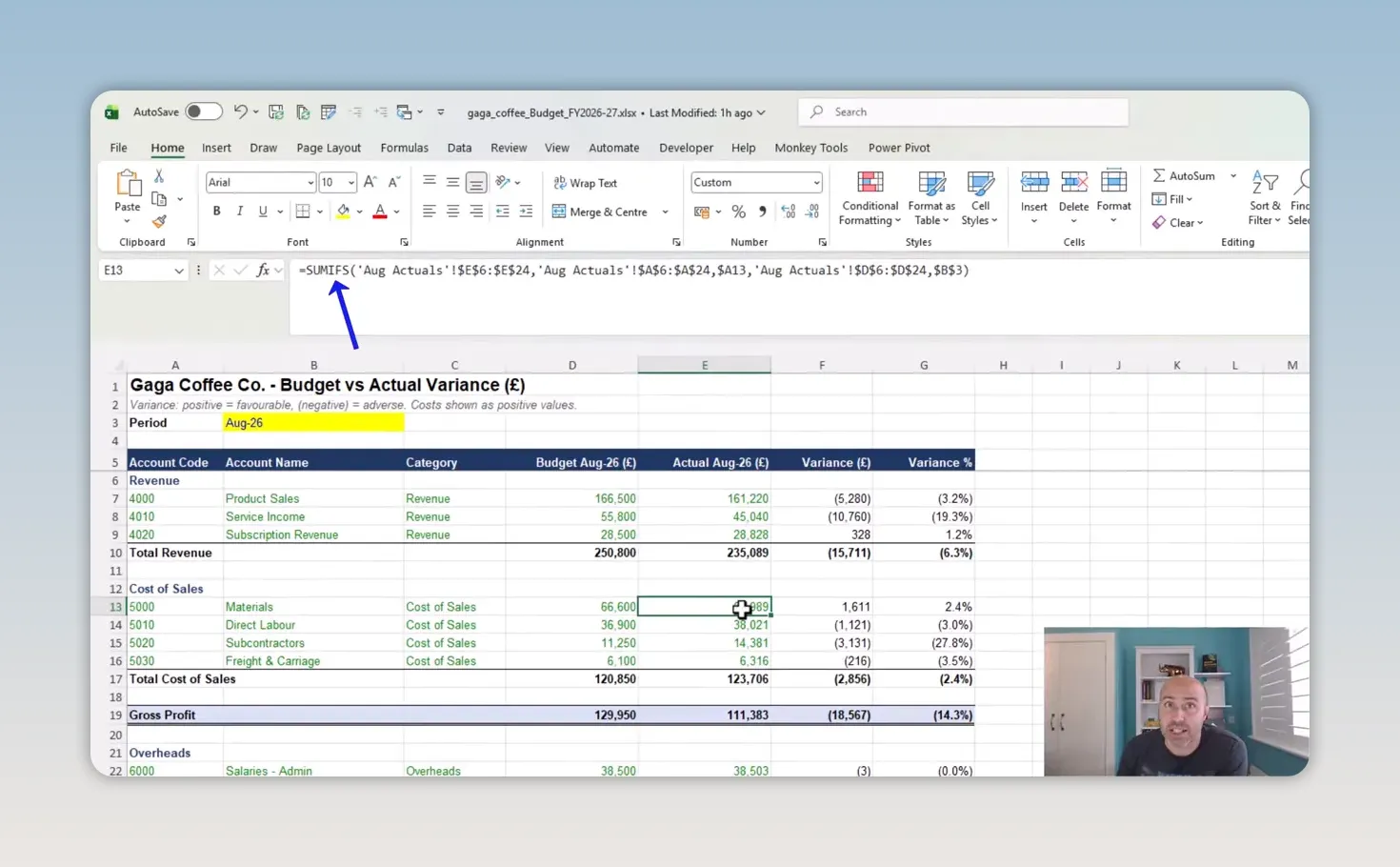
These formulas have different jobs:
- SUMIFS adds the actual values that meet the required criteria.
- INDEX with MATCH and MATCH retrieves the budget value at the intersection of the matching account and reporting period.
If you need a refresher on the first of these, Microsoft’s SUMIFS reference explains how the function sums values using multiple criteria.
The first version is impressive, but it is not quite the finished report. Claude has applied some formatting of its own, including green text and bracketed negative values. Before saving anything as a skill, I want to finish the report properly.
4. Add Commentary and Define the House Formatting
Add the key findings above the figures
The next request asks Claude to add commentary above the report, highlighting key findings from the variance analysis.
This turns the worksheet into more than a collection of calculations. The commentary sits alongside the figures it describes, so the monthly pack includes both the analysis and a written explanation of the main results.
Make the formatting requirements explicit
I then ask Claude to overhaul the formatting to match the style I want:
- Use black font for the main report text, with account codes treated separately.
- Display positive numeric values in a specified blue, using a hex color reference.
- Show negative values in brackets.
- Format percentages to one decimal place.
Some of these choices were already present in the initial output. I still specify them again because I want them captured in the skill, not left as a fortunate choice Claude happened to make this time.
That is an important distinction. If a formatting rule matters every month, it belongs in the saved instructions.
At this point, the August report has the calculations, commentary, layout, and formatting I want. Now we can save the recipe.
5. Turn the Finished Process Into a Claude Skill
There are different ways to create skills, including approaches that involve preparing and uploading a Markdown file. For this workflow, Claude offers a convenient route through Anthropic’s existing Skillify skill.
Instead of writing the skill file from scratch, I reference Skillify and ask it to turn the process we have just completed into a reusable skill for a given month.
I name it Monthly Variance Pack.
Claude then asks a few questions to refine the instructions. This is where we move from “repeat what we just did” to defining how the process should behave next month.
Confirm the goal and the reporting rules
For this example, I confirm the following:
- Goal: Create the monthly variance worksheet, generate the report, perform a reconciliation check, add commentary, and apply the house formatting.
- Location of new actuals: A new worksheet in the workbook each month.
- Unmatched account codes: Continue building the report, but flag the mismatch.
- An existing variance sheet for that month: Ask before replacing it.
Those last two decisions are particularly useful. The skill now has instructions for handling exceptions, rather than leaving Claude to choose what to do when account codes differ or a report already exists.
The resulting skill is not just a formatting shortcut. It captures the reporting workflow and the decisions that go with it.
6. Save the Skill and Resolve Any Validation Issues
Claude generates a skill.md file containing the reusable instructions. It then offers a choice of where to save the skill:
- Locally: Save it on the current computer.
- To Claude: Save it to the Claude account so it is available when signed in elsewhere.
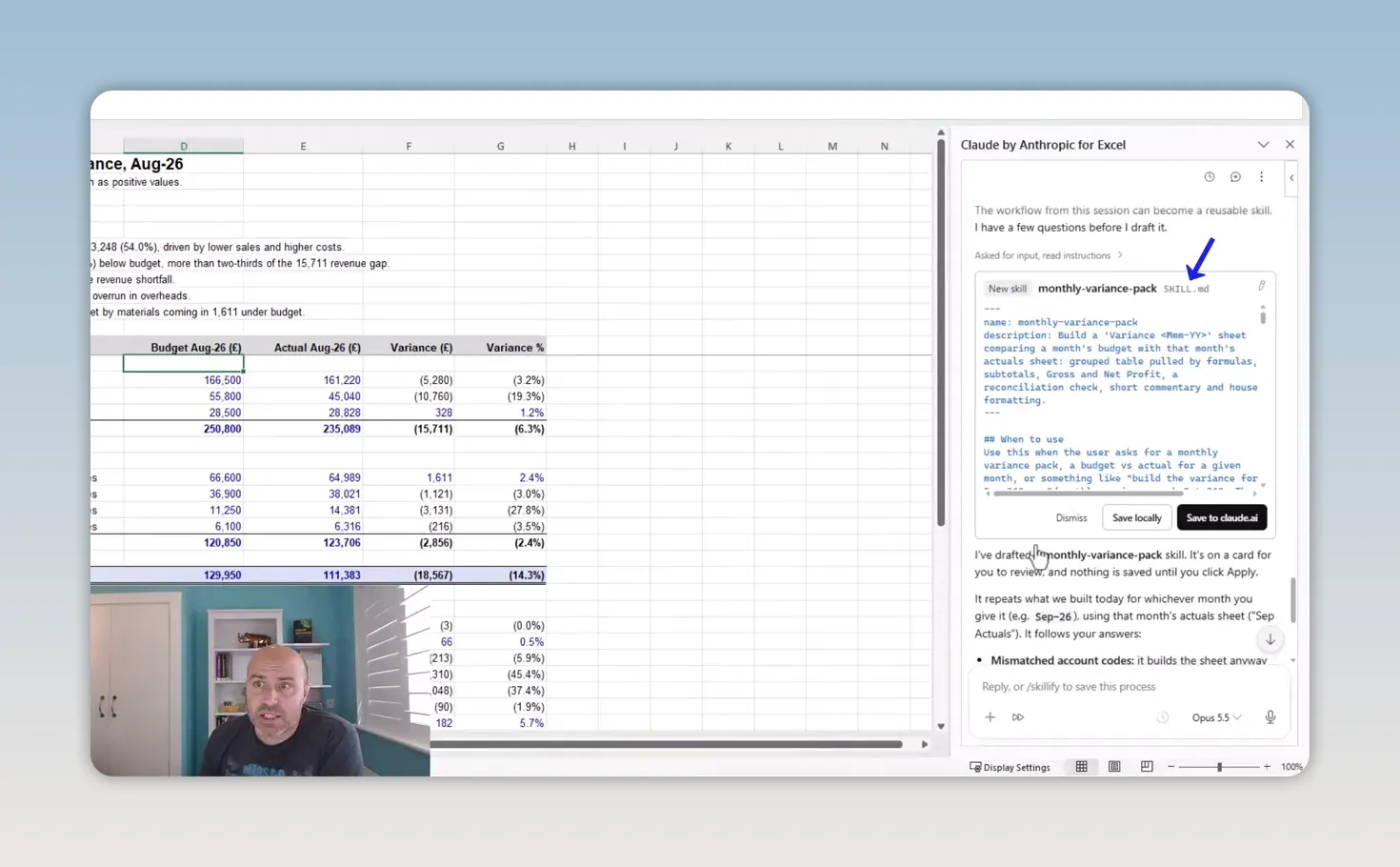
I choose to save it to Claude.
There is a small hiccup during this step: Claude raises a validation complaint about XML tags in the generated content. I edit out the offending markup and apply the change. The skill is then saved successfully.
AI does not get everything right, and this is a useful reminder of that. Generating the skill file is convenient, but you still need to respond to any validation messages rather than assuming the save has completed.
You do not need to write the whole Markdown file yourself to use this approach. The main work is defining the process clearly and answering the questions that make it reusable.
7. Run the Skill for the Next Month
Now for the useful part: a new month has ended, and I have September 2026 actuals exported from the system.
I copy those values into a new worksheet called Sep actuals, starting at cell A1. There is no need to repeat the report-building conversation.
In the Claude pane:
- Type a forward slash,
/, to explicitly reference a skill. - Start typing the skill name.
- Select Monthly Variance Pack when it appears.
- Add a short instruction specifying September.
- Submit the request.
The description shown when selecting the skill comes from the Markdown file created earlier.
You do not have to use the slash command. A natural-language request to create the monthly variance pack may be enough for Claude to recognize the relevant skill. I prefer explicitly selecting it here so there is no ambiguity about the process I want to run.
I also specify September. Claude might infer the month from the new sheet or ask for clarification, but supplying it keeps the request clear.
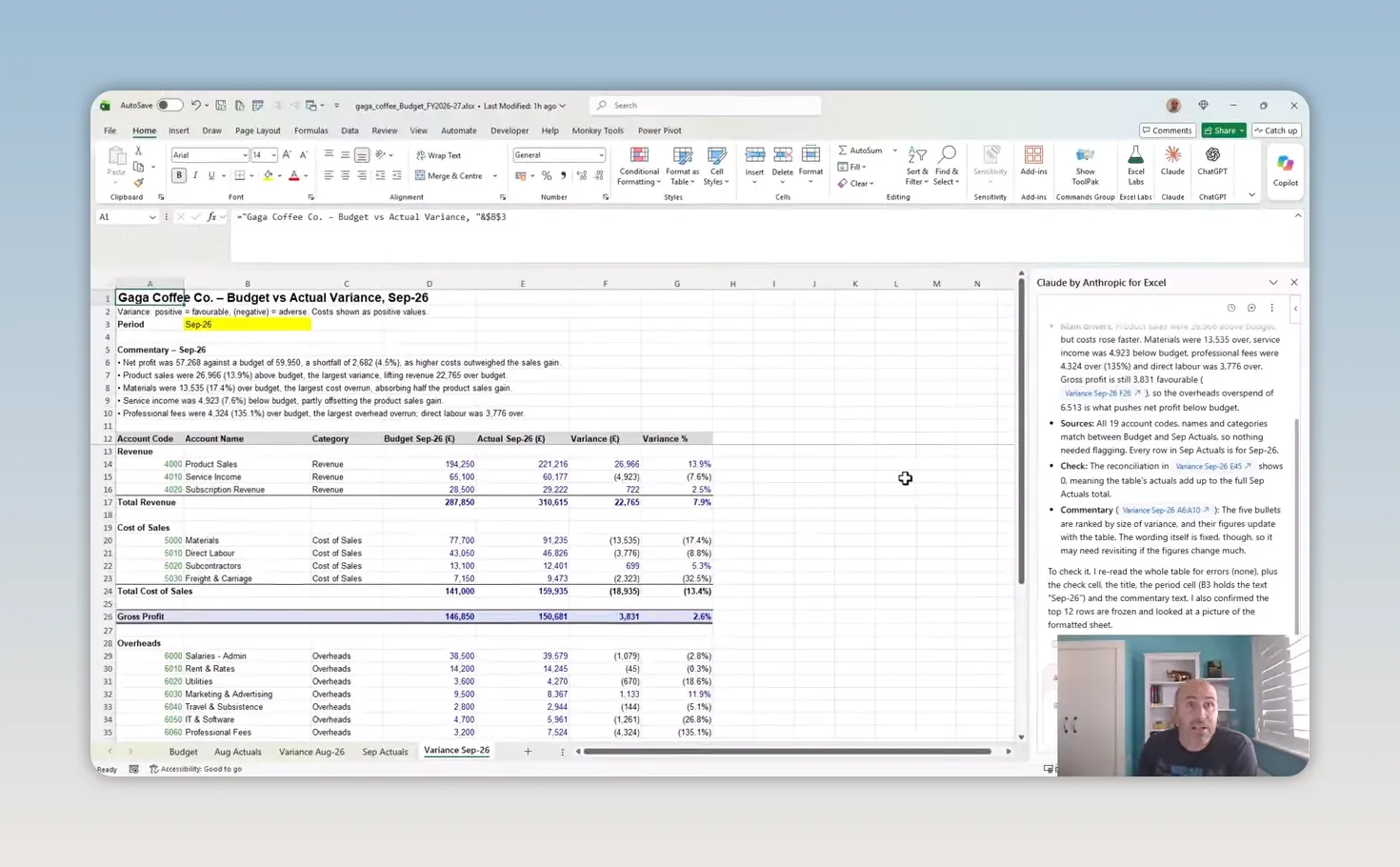
Claude produces the September budget versus actual variance report from that short request. The required layout and formatting are carried through from the saved skill.
That is the real benefit. The detailed instructions have not disappeared. They have moved into a reusable process, so the monthly request can stay short.
Build It Once, Then Reuse the Process
The best starting point for a Claude skill is a task you already repeat. Build one good version, refine the result, and then save the instructions that made it work.
For this monthly variance pack, that means capturing more than the calculations. It includes checking the data, grouping accounts, adding profit lines, writing commentary, applying house formatting, flagging unmatched codes, and asking before replacing an existing report.
The skill is the saved process, not the saved August report. Once that process is defined, September becomes a fresh set of actuals and one short request. That is a very useful next step for AI in Excel.


