Referencing a worksheet by its tab name is common in Excel VBA. It works perfectly well until somebody renames the sheet. Then a macro that ran happily a moment ago can stop with a Subscript out of range error.
For a specific worksheet in your VBA project, there is a better approach: use its code name. This makes your code shorter and protects the reference against changes to the sheet tab name.
Why Referencing the Sheet Tab Name Can Fail
Consider a workbook containing two worksheets, Summary and Financials. A typical statement to write a value to the Financials sheet is:
Worksheets("Financials").Range("B4").Value = 50This looks for a worksheet called Financials in the Worksheets collection and writes 50 to cell B4.
Run the code while the tab is named Financials and it works. However, rename that tab to Numbers and run the same statement again. VBA still looks for Financials, but that name is no longer in the collection. The result is a Subscript out of range error.
The worksheet itself has not disappeared. Only its name has changed. The problem is that the code depends on the name somebody can edit directly in Excel.
Find and Set the Worksheet Code Name
A worksheet has two names that matter here:
- Name: the display name shown on the worksheet tab in Excel.
- (Name): the code name used to identify the worksheet in VBA.
The brackets are the important distinction in the Properties window. Change the property labelled (Name), not the property labelled Name.
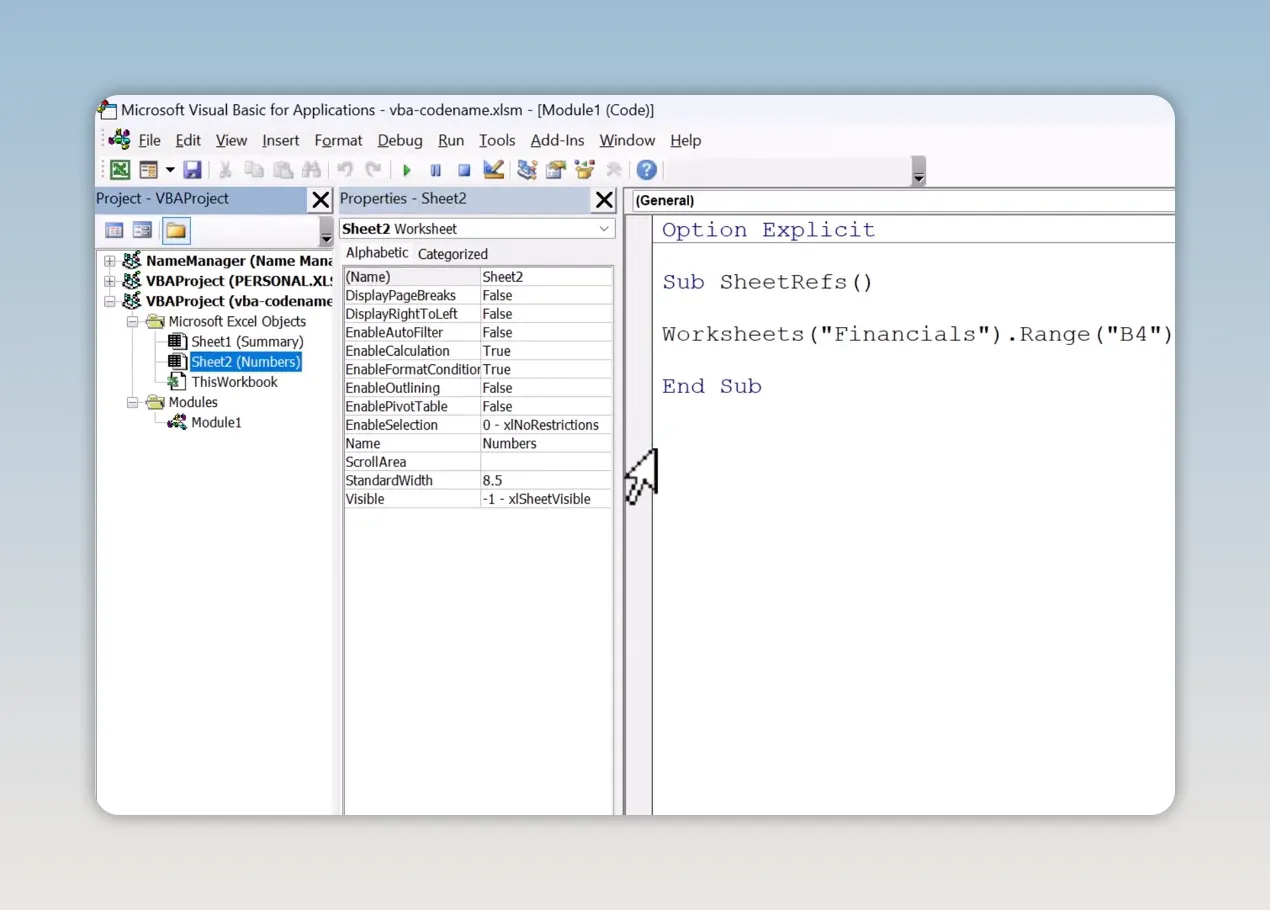
To set a meaningful code name:
- Open the Visual Basic Editor.
- In Project Explorer, select the worksheet you want to reference.
- If the Properties window is not visible, choose View > Properties Window.
- Find the (Name) property.
- Replace the existing code name with Financials for this example.
You can now use Financials directly in your code. There is no need to look up the worksheet by its tab name through the Worksheets collection.
Reference the Worksheet Directly in Your Macro
Replace the original statement with this shorter version:
Financials.Range("B4").Value = 50Here, Financials is the worksheet's code name, not a text string containing its tab name. Notice that it has no quotation marks and does not sit inside Worksheets().
To test the change, write a different value:
Sub SheetRef()
    Financials.Range("B4").Value = 100
End Sub
Run the macro and cell B4 on that worksheet updates to 100.
Now rename the worksheet tab again, for example from Numbers to My Numbers. Leave the code name as Financials. Change the value in the macro to 500 and run it once more:
Sub SheetRef()
    Financials.Range("B4").Value = 500
End Sub
Cell B4 updates to 500, even though the tab name has changed. The code continues to reference the same worksheet.
That is the useful distinction: renaming a worksheet tab does not change its code name. You can deliberately edit the code name in the Visual Basic Editor, but ordinary tab renaming leaves it alone. Microsoft's Worksheet.CodeName documentation explains this separation.
When your macro needs to work with a specific worksheet in its VBA project, using the code name is a simple improvement. You get a more concise reference and a macro that will not break just because somebody gives the sheet tab a different name.


