A QR code can be a lovely little addition to a leaflet, brochure, or newsletter. Rather than squeezing every detail onto the page, you can give readers a quick way to reach your website, find more information, or open a discount landing page.
You can create and insert a QR code directly in Microsoft Word using an Office add-in called QR4Office. Once inserted, the code behaves like a picture, so the Word skills you already use for resizing and positioning images apply here too.
1. Add QR4Office to Word
Start by opening your Word document and finding the Office add-ins area.
- Click the Insert tab.
- In the add-ins area, click Store.
- Select the Store link in the Office Add-ins window if necessary.
- Search for office QR.
- Find QR4Office and click Add.
There may be several QR code generators in the search results. I’m using QR4Office here. The store labels and location can vary between versions of Word, and older versions may not provide access to Office add-ins.
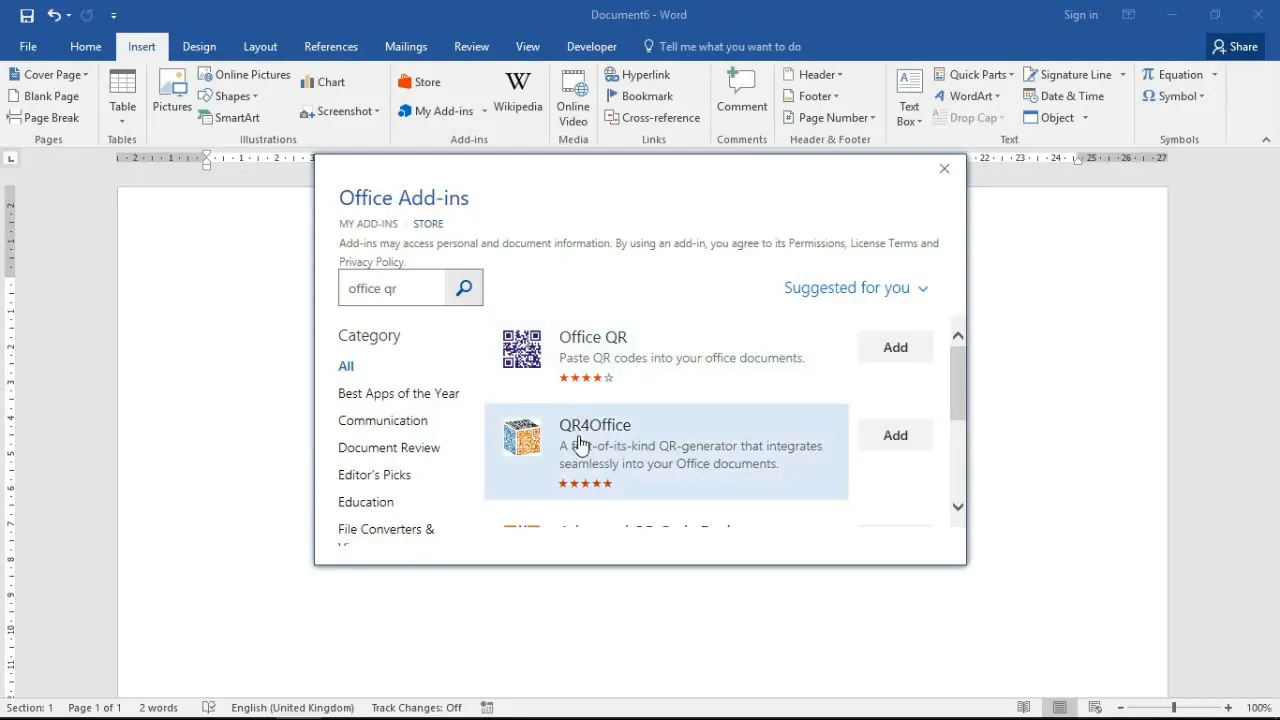
After you add it, QR4Office opens in a task pane on the right-hand side of Word. It also becomes available through your add-ins list for future use, so you do not need to search the store each time.
2. Enter the Website Address or Text to Encode
At the top of the QR4Office pane, enter the URL or text you want the QR code to contain.
For this example, I’m linking to the Computergaga homepage. When someone scans the completed code with a QR reader, it takes them to that website.
Use the prefix dropdown to choose the appropriate type of content, then enter the corresponding address or text. The available options include:
- HTTP or HTTPS: Link to a website or a particular web page.
- Mailto: Encode an email address.
- SMS: Create a code for a text message.
- Text: Encode text rather than a web address.
You are not restricted to linking to a homepage. For promotional material, a page containing the extra information or offer may be a more useful destination.
3. Choose the QR Code Appearance
QR4Office provides options for the code’s foreground color, background color, size, and error correction. A preview lets you see the code before inserting it into your document.
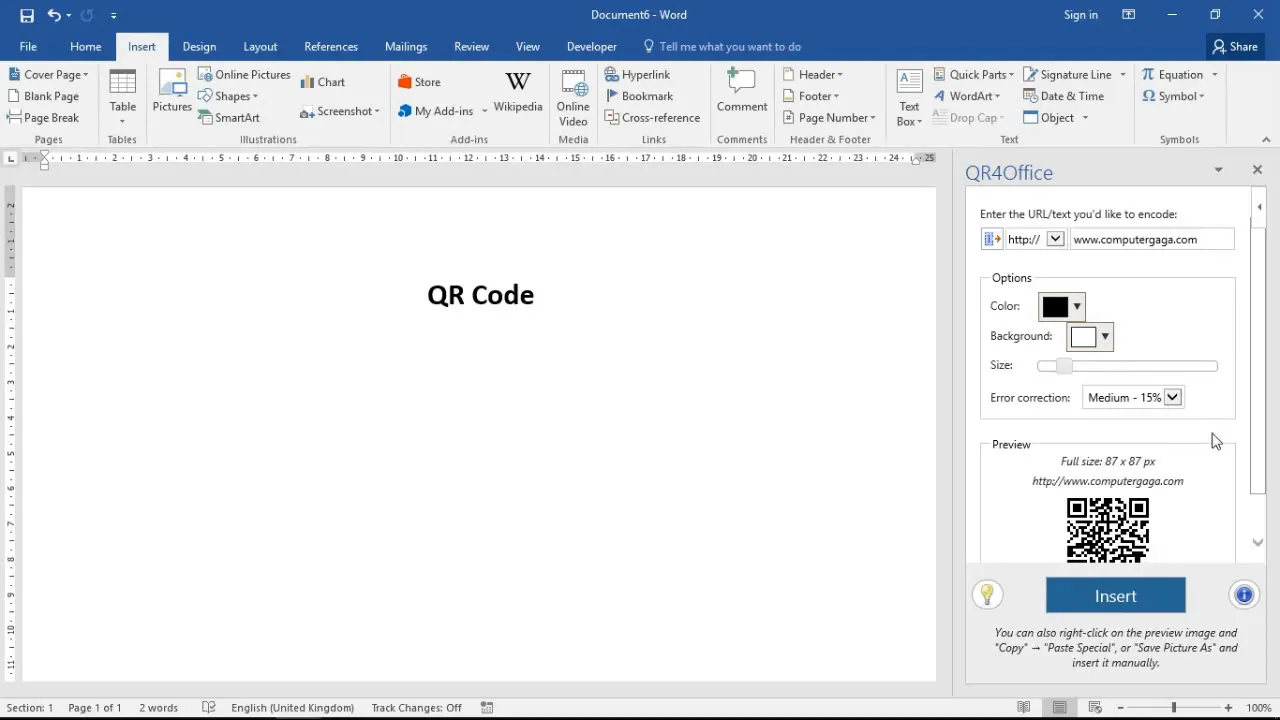
I’m keeping the code black on a white background. That is the familiar appearance people associate with QR codes, much as blue, underlined text is commonly associated with hyperlinks. You can change the colors, but there is no need to change them simply because the option is there.
For error correction, I’m leaving the setting at Medium, 15%. You do not need to adjust every technical option to create a straightforward website QR code. If you would like to understand that setting in more detail, the QR Code error correction guide provides background on the available levels.
4. Insert and Position the QR Code
Once you are happy with the settings, click Insert at the bottom of the QR4Office pane. The QR code appears in your Word document as a picture.
This is the useful part: you can work with it just as you would with other pictures and objects in Word. You can:
- Resize it to fit your page layout.
- Align it with the surrounding content.
- Adjust its positioning and anchoring within the document.
- Arrange its layering alongside other objects.
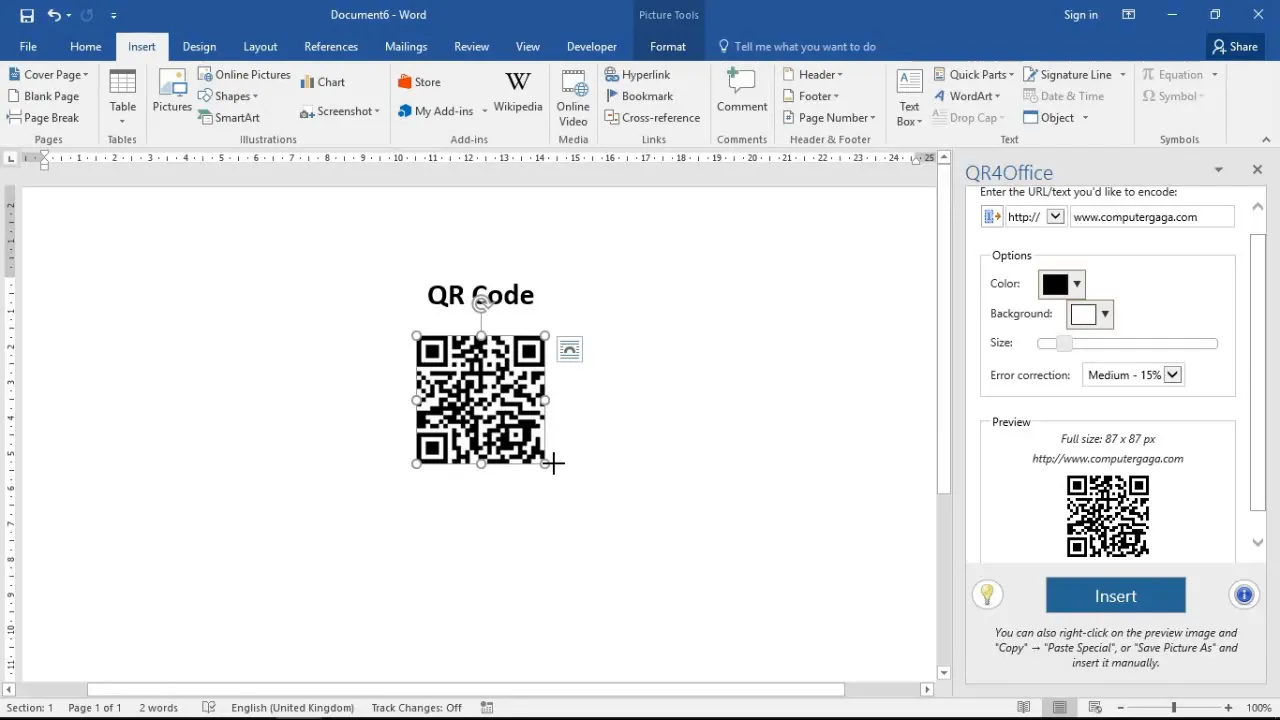
There is no separate layout system to learn for the QR code. Once it is on the page, your usual picture-formatting tools do the job.
Use QR Codes to Extend Your Printed Material
A QR code is particularly useful when space is limited. A leaflet can introduce an offer, while the linked web page supplies the details that would not fit comfortably into the design.
For example, you could use a QR code in:
- A brochure to direct readers to additional information.
- A newsletter to connect a short item with more detail online.
- A promotional leaflet to link directly to a discount or offer page.
The same add-in approach can also be used in PowerPoint and Excel, where supported. Word is a natural fit for leaflets and brochures, but QR codes are not limited to Word documents.
With the add-in installed, the process is simple: choose what to encode, keep or adjust the appearance, and insert the result. You then have a familiar picture object that connects your document to information beyond the page.


