A mail merge can do more than insert a recipient’s name, date and location. With Word’s If Then Else rule, you can change an entire paragraph depending on the value in a merge field.
A training booking confirmation is a simple, practical example. Some attendees need to know that parking is unavailable at their venue, while others need a different message confirming that parking is available. Rather than maintain separate documents, we can let Word choose the appropriate paragraph for each recipient.
For this straightforward condition, there is no need to write or modify field codes. Word provides a built-in dialog box to set it up.
The Example: Parking Instructions Based on Location
Our starting point is a Word mail merge document already connected to an Excel spreadsheet. The confirmation includes merge fields for the attendee’s name, training date and location.
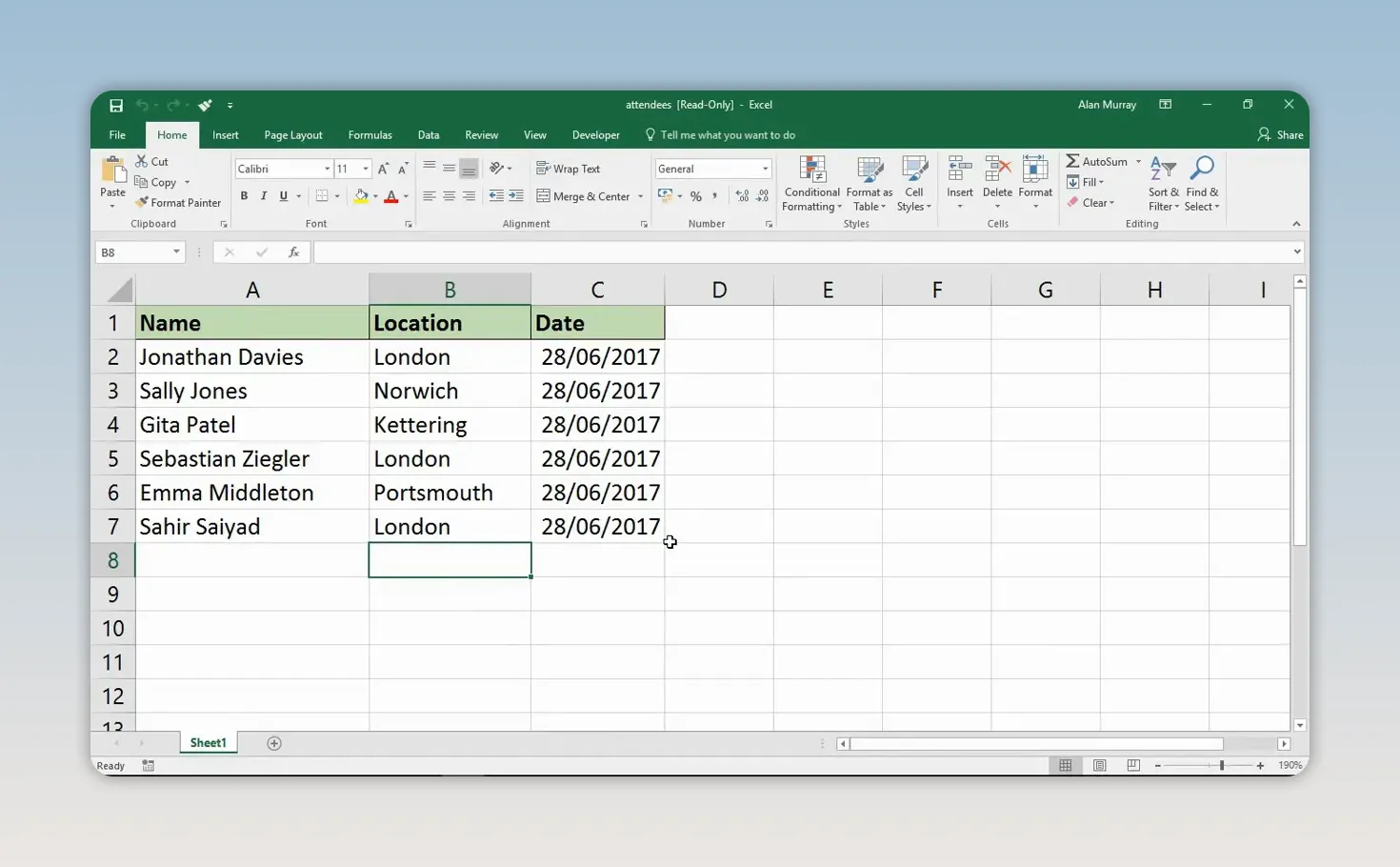
The spreadsheet contains six sample attendees, with columns headed Name, Location and Date. Three attendees are booked at London, and the remaining three are attending other locations.
For this example, the parking instructions follow one simple rule:
- If Location equals London: display a paragraph explaining that parking is unavailable.
- Otherwise: display a paragraph confirming that parking is available and asking the attendee to arrive in plenty of time.
The important point is that we are testing the Location field, not creating a separate rule for each attendee. Every recipient with London in that field receives the first paragraph. Everyone else receives the second.
1. Choose Where the Conditional Paragraph Will Appear
In the Word document, create an empty paragraph where you want the parking instructions to appear. Here, that is immediately after the booking confirmation sentence and before the sign-off.
Leave the insertion point in that empty paragraph. Word will insert the conditional text at this position.
2. Open the If Then Else Rule
- Select the Mailings tab.
- In the Write & Insert Fields group, select Rules.
- Choose If...Then...Else....
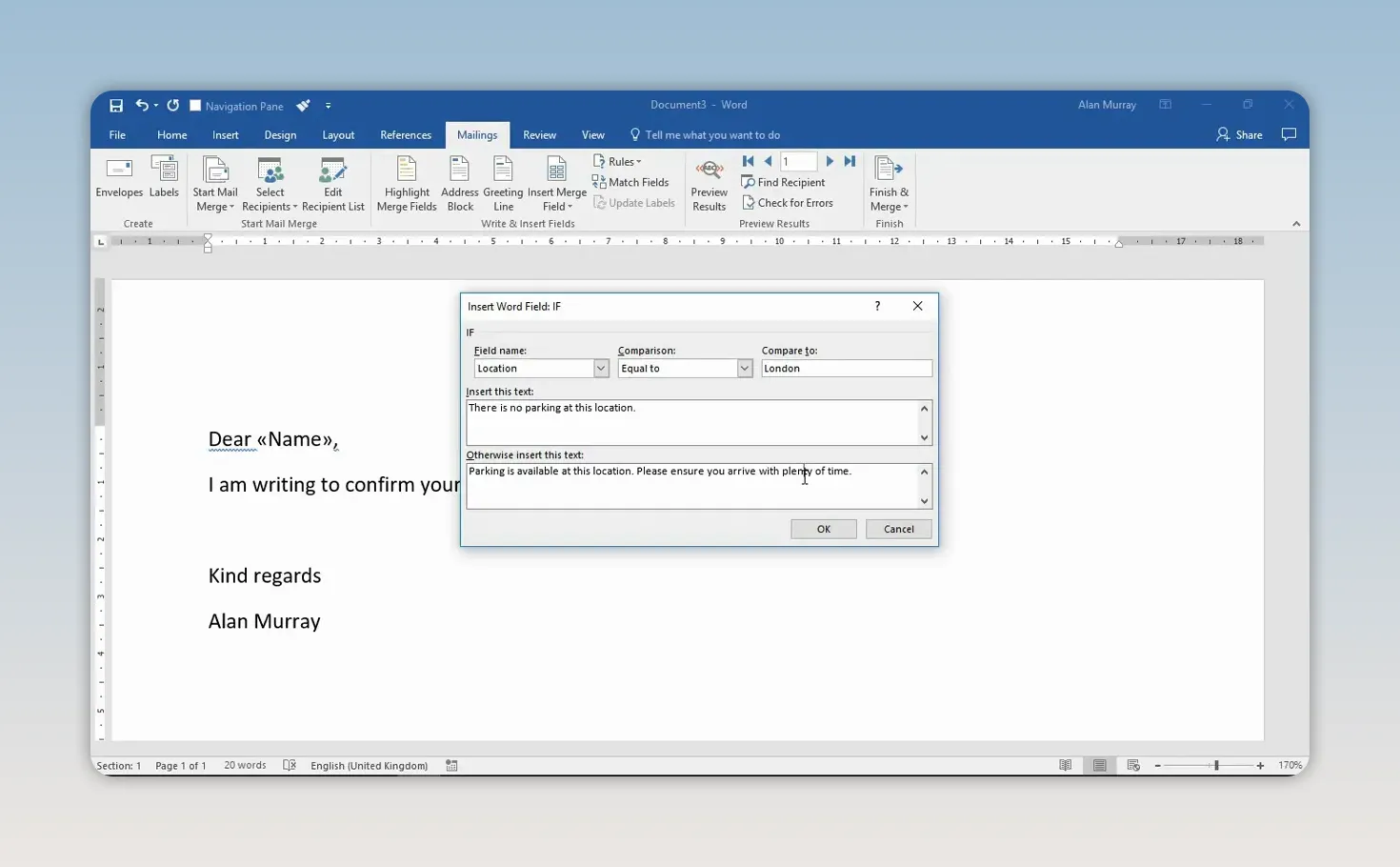
This opens the Insert Word Field: IF dialog box. It brings together the condition you want to test and the two possible pieces of text.
3. Set the Condition and Enter Both Paragraphs
At the top of the dialog box, enter the following settings:
- Field name: Location
- Comparison: Equal to
- Compare to: London
These settings ask Word to check whether the current recipient’s Location field equals London.
In Insert this text, enter the paragraph for London attendees. For example:
Parking is not available at this location.
In Otherwise insert this text, enter the paragraph for attendees at the other venues:
Parking is available at this location. Please allow plenty of time for your arrival.
Select OK to insert the rule into the document.
The Otherwise text is the fallback for every record that does not meet the condition. In this example, that means every location other than London receives the parking-available paragraph. The rule does not check those other venues individually, so this approach is appropriate only when they should all receive the same alternative message.
4. Preview the Results for Different Recipients
Once the rule is inserted, check both outcomes before completing the merge.
- On the Mailings tab, select Preview Results.
- Check a recipient whose location is London.
- Use the recipient navigation arrows to move to a record with a different location.
- Confirm that the parking paragraph changes along with the recipient details.
For the first sample recipient, Jonathan Davies, the venue is London and the document displays the no-parking message. Moving to the next recipient, Sally Jones at Norwich, changes the paragraph to confirm that parking is available.
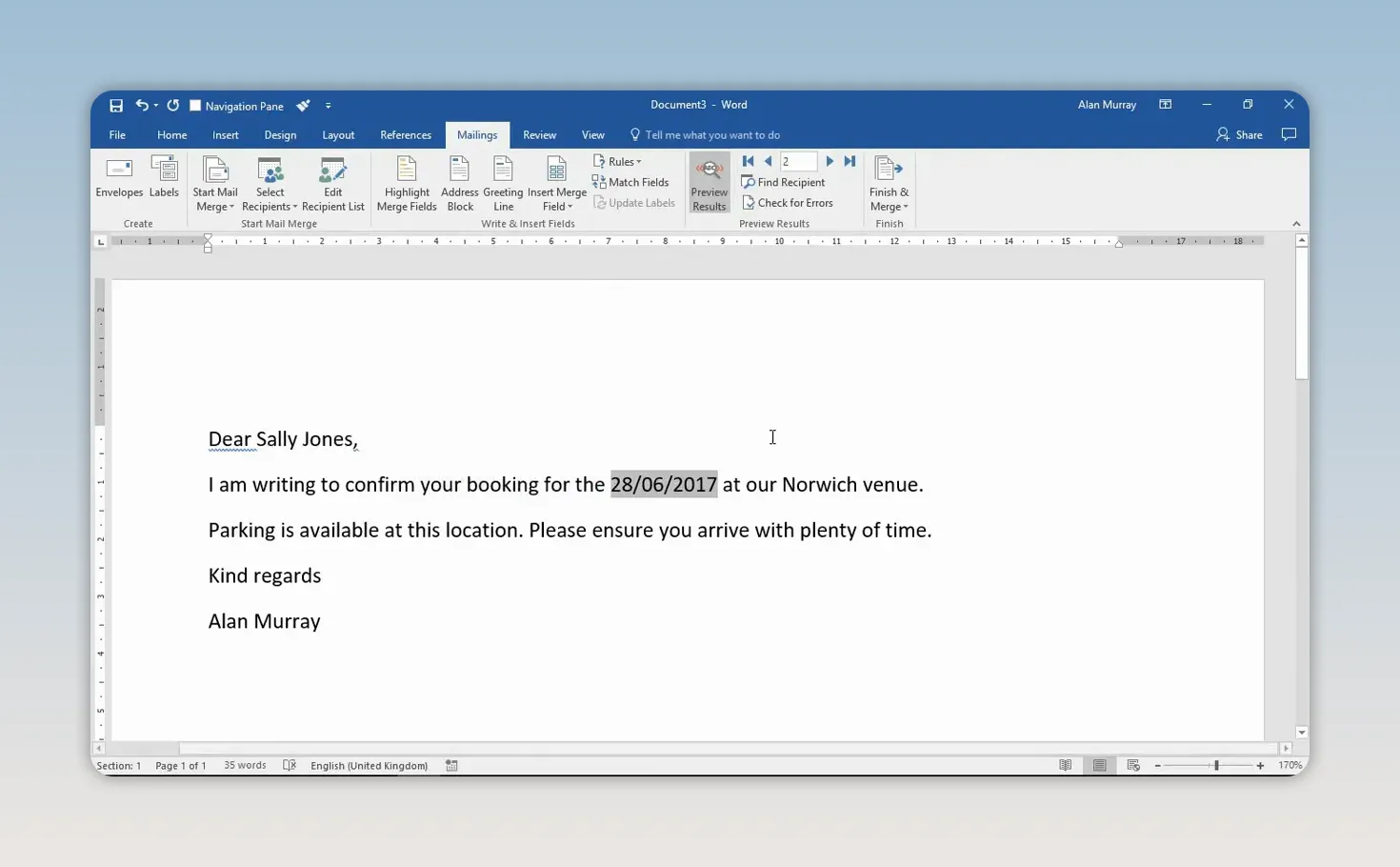
Continuing through the records shows the same behaviour: Kettering receives the parking-available text, while the next London record returns to the no-parking text.
Keep Simple Conditions Simple
The If Then Else rule is a convenient way to insert conditional paragraphs in a Word mail merge without editing field codes. Choose a field, define a comparison, and provide the text for each outcome.
The same principle applies when the decision depends on another merge field rather than Location. More complex arrangements, including multiple IF conditions, are possible, but they become more involved. For a straightforward choice between two paragraphs, the built-in dialog box keeps the setup simple and easy to check.


